

Is Public Wi-Fi Safe? What Has Changed, What Hasn’t and What to Do Now
For years, the standard warning was simple: never use public Wi-Fi. These days, the official advice is more nuanced, and some of it may surprise you.

If you connect to café, airport, hotel or library Wi-Fi, this guide is for you. It’s built as a “what changes for you” guide: what used to be true, what has changed, what hasn’t, and what that means for what you actually do. It’s written for readers in the US, the UK and Europe. It draws on a US Federal Trade Commission (FTC) page published on 12 March 2026, an Australian Cyber Security Centre (ACSC) page last updated in April 2023, and an older FTC note on VPN apps from 2018. I leave out brand names and product recommendations, and I mark where my sources disagree, where they’re old and what I couldn’t confirm. This is general information, not security advice for your particular devices or accounts.
What Has Changed: Most of the Web Is Now Encrypted
The old risk
The FTC page puts the history plainly: “In the past, if you used a public Wi-Fi network to get online, your information was at risk.” The reason it gives is that most websites didn’t encrypt data, so someone on the same network could snoop on it.
The new situation
The same page says: “Today, most websites do use encryption to protect your information.” It concludes that connecting over public Wi-Fi is “usually safe.” It adds that the majority of mobile apps also use encryption, though it says this is harder to verify than it is for a website.
That’s a real change, and it’s the one thing in this guide I’d want you to remember. If you’re only browsing the news, the old fear of someone reading everything you send is less accurate than it used to be, according to the FTC. That is my paraphrase of the page, not a quotation.
How to check a site is encrypted
Look for a lock symbol, or “https” in the address bar, to the left of the web address. The FTC says this works in mobile browsers too. If a page has neither, I’d treat it as unprotected. That final step is my own suggestion.
A word of caution about dates
This FTC page is the newest of my sources. The other main source, from the ACSC, was last updated in 2023, and its tone is more cautious. I’ll show you both, because the gap between them is itself useful. The ACSC page doesn’t say that encryption has become common, so I can’t tell you whether its authors would now agree with the FTC. That’s a gap, not a contradiction.
What Hasn’t Changed: Fake Networks and Fake Sites
Encryption protects data on its way to a website. It doesn’t tell you who is running the network or the site.
Fake hotspots
The ACSC page warns that public hotspots are often free and unsecured, and says: “They can be accessed by anyone, and are often free and unsecured.” It also says criminals can set up fake hotspots that copy the names of legitimate ones.
Its case study makes the point. It describes a traveller whose ID documents were intercepted after he joined a fake airport network, which led to identity theft. That’s one case from one page, so I’d read it as an illustration, not a measure of how common this is. I haven’t seen figures for how often it happens.
Fake websites can look safe
The FTC makes a related point. It warns that scammers may encrypt their sites so they appear safe. Encryption protects data in transit, but, in the page’s words, “it won’t be safe from scammers operating the site.” So the padlock tells you the connection is encrypted. It doesn’t tell you the site is honest. That’s the key distinction in this whole guide.
Impersonation
The FTC also mentions impersonation scams, where someone poses as a well-known company or government agency to steal information. That’s the same family of problem, and it’s not specific to Wi-Fi.
So what’s the one-line summary?
My own summary: the network is less of a worry than it used to be, and the people behind the network and the site are still a worry.

Before You Connect: Check, Choose and Switch Off Auto-Join
Confirm the network name
The ACSC says to check the network name on signage or with venue staff. In practice, this means asking at the counter, not guessing from a list of similar names.
Prefer password-protected networks
The ACSC page says to prefer password-protected networks over open ones. It doesn’t explain why in the section I read, so I won’t add a reason.
If you’re unsure, don’t
The page’s advice is: if you’re unsure, don’t connect. Use a trusted home, office or mobile connection instead. I think that’s the most practical line on the page, because it gives you a way out.
Turn off auto-connect
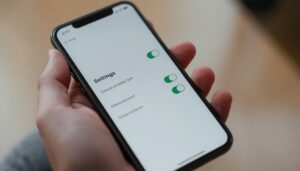
This is a small setting with a big effect. The ACSC says to disable auto-join or auto-connect for public networks, noting that “Preventing your device from automatically connecting to the hotspot” helps avoid accidental joins. After use, forget the network so your device doesn’t reconnect later.
Turn off file sharing
The page also says to turn off file sharing. It says that selecting “public” when you join a network typically does this automatically, but I’d check your own device’s settings, since I don’t know how yours behaves.
A pre-connection checklist
These are drawn from the ACSC page, in my own order.
- Ask staff for the network name.
- Pick a password-protected network if there’s a choice.
- If in doubt, use your phone’s own connection.
- Switch off auto-join.
- Check that file sharing is off.
While You’re Connected: What to Do and What to Hold Off On
Look for https and the padlock
Both sources agree on this. The ACSC says to look for “https” and a padlock icon before entering data. The FTC says the same, as above. If your browser warns you about a site, the ACSC says to stop, disconnect and forget the network.
Be careful with sensitive things
The two sources differ in tone here. The ACSC says not to send sensitive information, such as banking logins or identity documents, over public Wi-Fi when you can wait for a trusted connection. The FTC says connecting is “usually safe.” They can both be right. My own reading is that the FTC describes the typical case, and the ACSC describes the cautious choice for the things you can’t afford to lose.
So a sensible middle path, which is my own suggestion and not from either page: browse freely, and save banking, identity documents and anything irreplaceable for a trusted connection.
Use strong passwords and two-factor authentication
The FTC says to use strong passwords and turn on two-factor authentication when available. It’s good general advice, and it matters more here because it limits the damage if a password does leak.
Keep your software up to date
The FTC also says to keep your security software, operating system and browser up to date, and to turn on automatic updates.
Know what to do if something looks wrong
The FTC says to report scammers at ReportFraud.ftc.gov. That’s a US site, and I haven’t found the equivalent for the UK or Europe in the pages I read, so please check your own country’s reporting route.

VPNs, Your Phone and When to Wait
What a VPN is
The ACSC describes a virtual private network (VPN) as a tool that “encrypts and secures your data when using the internet,” adding an extra layer of protection. It says that if you use public Wi-Fi often, you could install a reputable VPN.
A VPN is a trade-off
The ACSC warns that VPN providers can see a lot of user data. It tells you to research the provider’s privacy policy, data storage practices and independent reviews first. In other words, you are moving your trust from the network to the VPN company.
Older FTC advice on VPN apps
A 2018 FTC release says some consumers use VPN apps to “help shield personal information sent over a public, open Wi-Fi network.” Its checks before using a VPN app are: research the app before you download it, review its permission requests, confirm that it encrypts your information, and see whether it shares your information with third parties. The release is from 2018, so I’d use it as a reminder of the questions, not as current guidance. The newer FTC page I read doesn’t mention VPNs at all.
I won’t name any VPN or tell you whether you need one. That depends on how often you connect and what you do on the network.
Your own connection
The ACSC’s fallback, if you’re unsure about a network, is a trusted home, office or mobile connection. It doesn’t spell out how to share your phone’s connection, so I won’t give steps.
A “what changes for you” summary
This table is my own summary of the two main sources.
| Old advice | What the sources say now |
|---|---|
| “Never use public Wi-Fi.” | The FTC (2026) says it is “usually safe” because most websites encrypt. The ACSC (2023) is more cautious. |
| “The network is the danger.” | Fake hotspots and fake sites are the danger, not just open networks. |
| “A padlock means the site is safe.” | It means the connection is encrypted, not that the site is honest. |
| “Always use a VPN.” | The ACSC says consider a reputable one if you connect often, and check its privacy practices. |
What I couldn’t confirm
I read two main pages: an FTC page published on 12 March 2026, with a 2023 date also at the foot, and an ACSC page last updated in April 2023. I also read a 2018 FTC release on VPN apps. I couldn’t open a UK National Cyber Security Centre page with actual public Wi-Fi advice, so I have no UK or EU government source here. A US cybersecurity agency page on public Wi-Fi was archived and held no list of tips. I haven’t covered mobile data security, Bluetooth, hotel-specific networks, work devices or company policies, or any particular VPN or security product. I also haven’t verified how often fake hotspots occur, and I haven’t tested any network.
A short wrap-up
The old rule, “never touch public Wi-Fi,” has softened, because most of the web is now encrypted. What hasn’t changed is the importance of knowing whose network and whose website you’re on. Confirm the network name, turn off auto-join, look for the padlock, and keep your banking and identity documents for a connection you trust. That small routine covers most of what the sources recommend.